
Important but Not Urgent Tasks Get Ignored Until They Get a Date
One user wrote this in a Google Play review of a to-do app: over time, they learned to ignore the tasks on their list, especially the ones without a definite deadline or reminder.
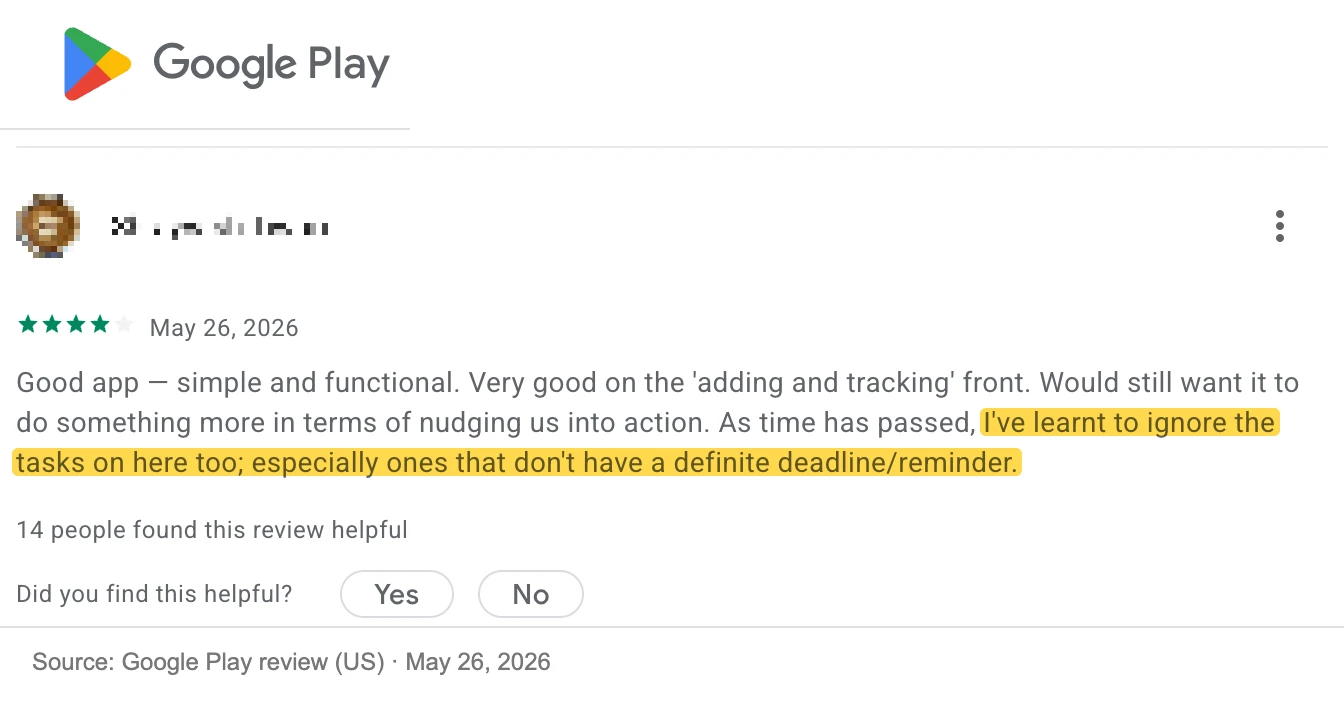
Most tasks are not ignored because people are lazy. They are ignored because they were never given a day. When a task has no time slot, procrastination keeps pushing it back by one more day.
Why tasks without a date slip
- Every day brings tasks that are due, and a due task always looks more pressing than one without a date.
- A list without dates has no "today" in it, so every task on it can wait.
- The longer a task stays on the list, the easier it becomes to scroll past it.
The tasks this happens to
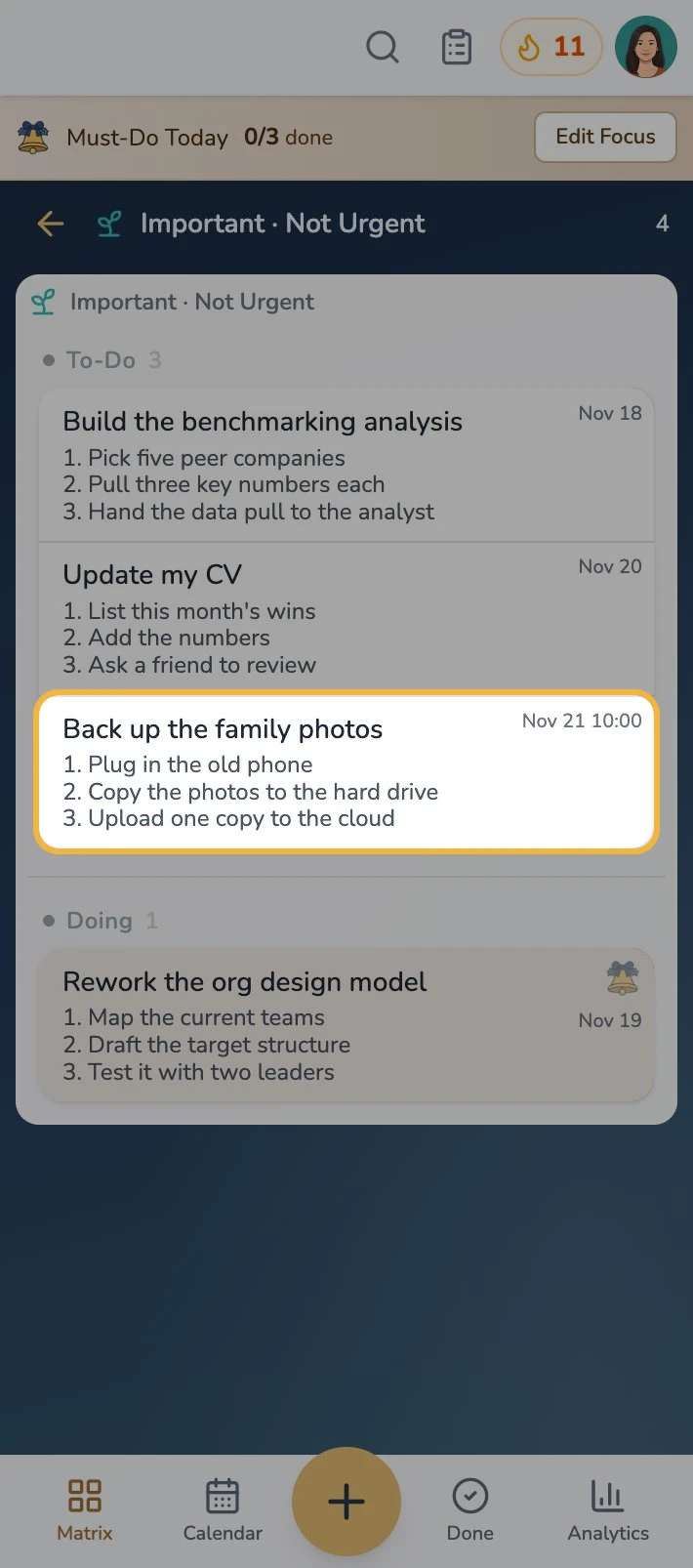
These are usually Important · Not Urgent tasks: backing up the family photos, updating your CV or booking a health checkup. Nothing breaks if they wait one more day, so they wait for months, until one of them turns into an emergency.
Give the task a day
Take "Back up the family photos". It sits in Important · Not Urgent, and its notes list the three steps: plug in the old phone, copy the photos to the hard drive, and upload one copy to the cloud. Open the task, set Due date & time to Saturday, November 21 at 10:00, and the task now has a place in the week.
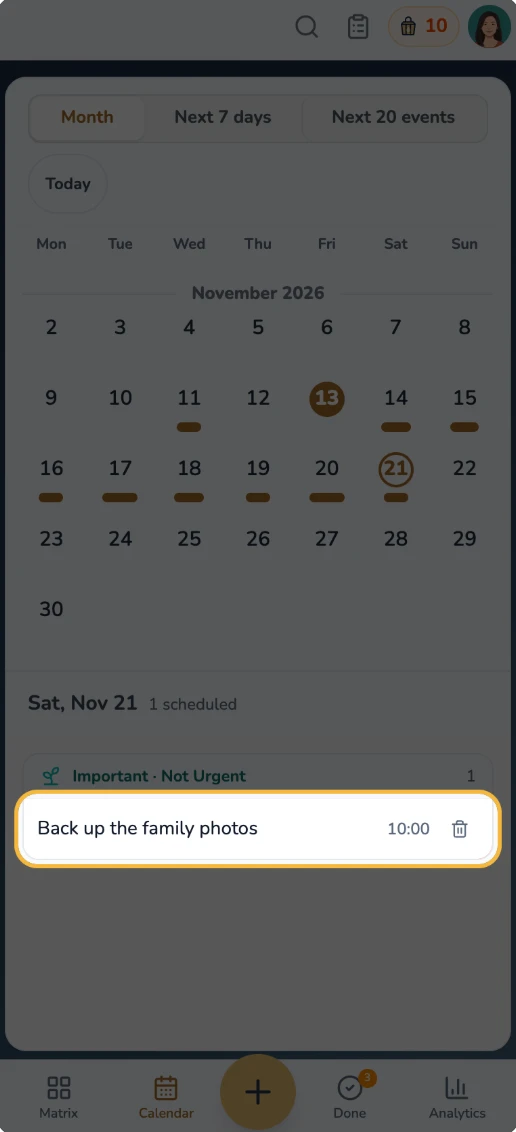
A dated task also appears on that day in ToDoForce's Calendar, next to everything else planned for Saturday.
The date does not make the task urgent. It only makes sure that the task comes up on a day you have already chosen.
A five-minute weekly check
- Open Important · Not Urgent.
- Find each task that has no date.
- Give it a day this week or next. If the whole task is too big, schedule only its first step.